


Can’t find the NFC toggle in your iPhone settings? You’re not alone. While NFC (Near Field Communication) technology has revolutionized how we pay and interact with the world, Apple handles it differently than Android. In this guide, we’ll clarify why you might not see an ‘ON’ switch, how to ensure your NFC is working, and explore the endless use cases—from seamless Apple Pay transactions to powerful home automations.
Which iPhones Support NFC?
Before learning how to use NFC on your iPhone, it’s important to know whether your device supports NFC and what features are available.
| iPhone Model | NFC Support | Background Reading |
|---|---|---|
| iPhone 6 / 6s | Apple Pay Only | No |
| iPhone 7 / 8 / X | Yes | No |
| iPhone XS / XR and newer | Yes | Yes |
How to Enable NFC on iPhone
Why Can’t I Find the NFC Toggle? Many users are surprised to find that there is no “ON/OFF” switch for NFC in their iPhone settings. Unlike many Android devices, Apple does not provide a dedicated NFC switch. On most modern iPhones, NFC operates automatically in the background, allowing users to scan tags without manually enabling the feature.
1. For iPhone XS, XR, 11, and Newer (Including iPhone 12, 13, 14, 15, and 16)
On these models, Apple has implemented Background Tag Reading. You don’t need to enable anything!
- The Step:Simply wake your iPhone and tap the top-back area against an NFC tag.
- Note:You don’t even need to open an app; a notification will automatically appear on your screen if a tag is detected.
2. For iPhone 7, 8, and iPhone X
These models support NFC but do not have “background” scanning. You must trigger it manually:
- Step 1:Open Settings > Control Center.
- Step 2:Find NFC Tag Reader and tap the green “+” icon to add it to your Control Center.
- Step 3:Swipe down from the top-right (or up from the bottom) to open Control Center, tap the NFC icon, and then hold your phone near the tag.
3. For iPhone 6 and 6s
- Limitation:These models only support NFC for Apple Pay. They do not natively support reading general NFC tags (like smart posters or business cards) without third-party apps.
Pro Tips for Successful Scanning with NFC on iPhone
- Sweet Spot:The NFC antenna is located at the very top edge of your iPhone (near the camera). For the best results, tap the top of the phone, not the middle or bottom.
- Unlock First:While some tags work on the lock screen, most require the iPhone to be awake and unlocked for security reasons.
- Avoid Metal:Heavy metal cases or “MagSafe” accessories with thick metal plates can interfere with the NFC signal.
What Can You Do With NFC on iPhone?
Once you realize that NFC on iPhone is always ready, a world of “one-tap” possibilities opens up. Here are the most powerful ways to use it today:
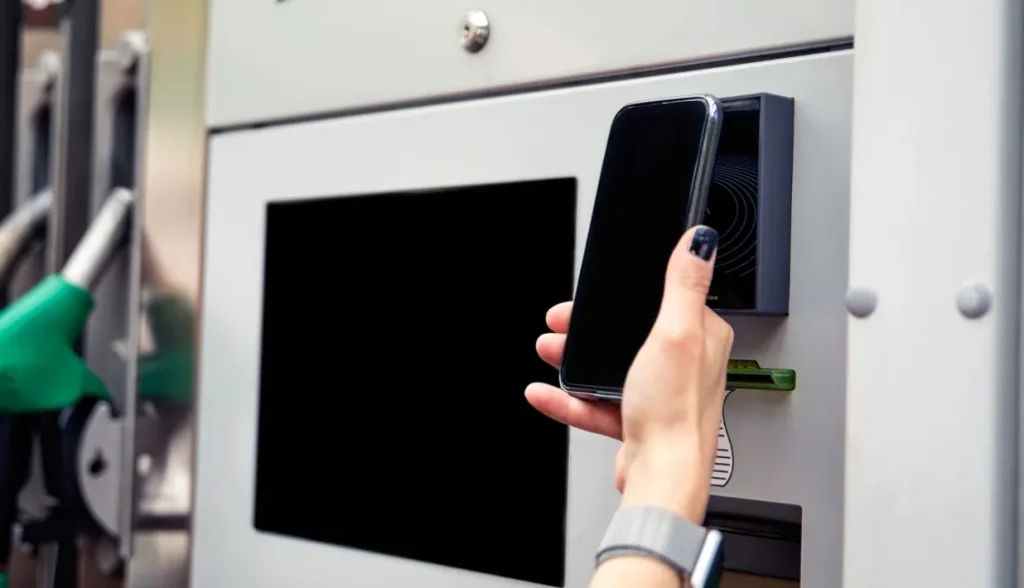
1. Seamless Contactless Payments (Apple Pay)
The most common use case. By securely storing your credit or debit cards in the Apple Wallet, you can pay at millions of locations worldwide. Just double-click the side button and hold the top of your iPhone near the reader—no physical card required.
2. Smart Home & Office Access
Stop fumbling for keys. Many modern smart locks and office security systems allow you to add a Digital Key to your Apple Wallet. Simply tap your phone against the door reader to unlock it instantly. It even works for some hotel rooms and cars!
3. Powerful Shortcuts & Automation (The “Magic” Part)
This is where iPhone NFC truly shines. Using the Shortcuts app, you can program an inexpensive NFC sticker to trigger complex actions:
- Bedtime Mode: Tap a sticker on your nightstand to turn off the lights, set an alarm, and play white noise.
- Workout Starter: Tap a tag on your gym bag to launch your “Gym” playlist and start a fitness tracking session on your Apple Watch.
4. Digital Business Cards & Networking
Forget paper business cards. With an NFC-enabled business card (like those using Topaz512 chips), you can tap your phone to someone else’s iPhone to instantly share your contact info, LinkedIn profile, or portfolio. It’s the fastest way to network in 2026.
5. Instant Info with App Clips & Smart Posters
Found a smart poster at a museum or a parking meter? Instead of downloading a full app, just tap the NFC icon. App Clips will launch a tiny, fast version of the app to let you pay for parking or get info in seconds.
How NFC on iPhone Works and Popular NFC Chips Compared
Now that you’ve seen what NFC can do on your iPhone, it’s important to understand the technology behind it and choose the right NFC chip to make these applications work seamlessly.
How NFC on iPhone Works
NFC is a short-range wireless communication technology that allows devices to exchange data within a few centimeters. Compared with other RFID (radio frequency identification) technologies, it has a higher data transmission rate and lower power consumption. Features of NFC include:
High security: NFC communication uses encryption technology to ensure the security of data during transmission.
Convenient: No cable connection is required, just bring the device close to complete data transmission or payment operations.
Good compatibility: Supports a variety of devices and application scenarios, such as mobile phones, smart watches, access control systems, etc.
Popular NFC Chips Compared
Selecting the right NFC chip is critical for ensuring smooth interactions and sufficient memory for your intended use. Here are the industry standards that work flawlessly with iPhone:
- NTAG® Series (Versatile and Reliable)
- NTAG® 213: Ideal for simple tasks like opening a URL or social media profile. Affordable and reliable.
- NTAG® 215: More memory (504 bytes), perfect for slightly more complex data like Amiibos or medium automations.
- NTAG® 216: “Heavyweight” of the series with 888 bytes of memory, suitable for full vCards or multiple automation commands.
- Topaz® 512 (The Workhorse)
A Type 1 NFC chip with 512 bytes of memory. Great for smart posters and product tags where you need more space than NTAG® 213 but want to keep costs efficient. - MIFARE® DESFire® (The Security Specialist)
Ideal for high-security access control and payment systems. Advanced hardware encryption prevents cloning, making it perfect for corporate ID badges or hotel keys. - ICODE® Series (Long-Range Expert)
Slightly better proximity detection than standard NFC. Best for inventory management and high-end retail tagging.
Quick Comparison: Which Chip Do You Need?
| Chip Type | User Memory | Best Use Case | Security Level |
|---|---|---|---|
| NTAG® 213 | 144 Bytes | Simple URLs, Social Media Links | Standard |
| Topaz® 512 | 454 Bytes | Smart Posters, Product Tags | Standard |
| NTAG® 215 | 504 Bytes | Amiibos, Medium Automations | Standard |
| NTAG® 216 | 888 Bytes | Full vCards, Complex Shortcuts | Standard |
| MIFARE® DESFire® EV3 | Up to 8KB | Corporate Access, Payments | High (Encrypted) |
By understanding how NFC on iPhones works and choosing the right chip, you can unlock the full potential of your iPhone, making payments, automations, and networking faster, safer, and smarter.
Conclusion
NFC has become one of the most useful technologies built into modern iPhones. Whether you’re making contactless payments, automating daily routines, sharing digital business cards, or accessing secure facilities, NFC makes interactions faster and more convenient.
Understanding how NFC works—and choosing the right NFC tag or chip—can help you unlock the full potential of your iPhone and create smarter digital experiences for both personal and business use.
Ready to start using NFC to its fullest? Explore our wide range of NFC tags and chips today to find the perfect solution for payments, automation, digital business cards, and secure access. Make your iPhone interactions smarter and simpler—get your NFC tags now.
FAQs about enabling NFC on iPhone
1 Does iPhone have NFC?
Yes. All iPhones from iPhone 6 onward support NFC, although the available features vary by model.
2 How do I turn on NFC on my iPhone?
Most modern iPhones do not require manual activation. NFC is enabled by default and works automatically when a compatible tag is detected.
3 Why can’t I find the NFC setting on my iPhone?
Apple manages NFC differently from Android devices. There is no dedicated NFC toggle on most iPhone models.
4 Can iPhone read NFC tags?
Yes. iPhone XS, XR, and newer models support background NFC tag reading without requiring a separate app.
5 What is the best NFC chip for iPhone?
NTAG® 213 is ideal for simple URL sharing, while NTAG® 216 provides more memory for digital business cards and advanced automations. For secure access control, MIFARE® DESFire® EV3 is a preferred option.


