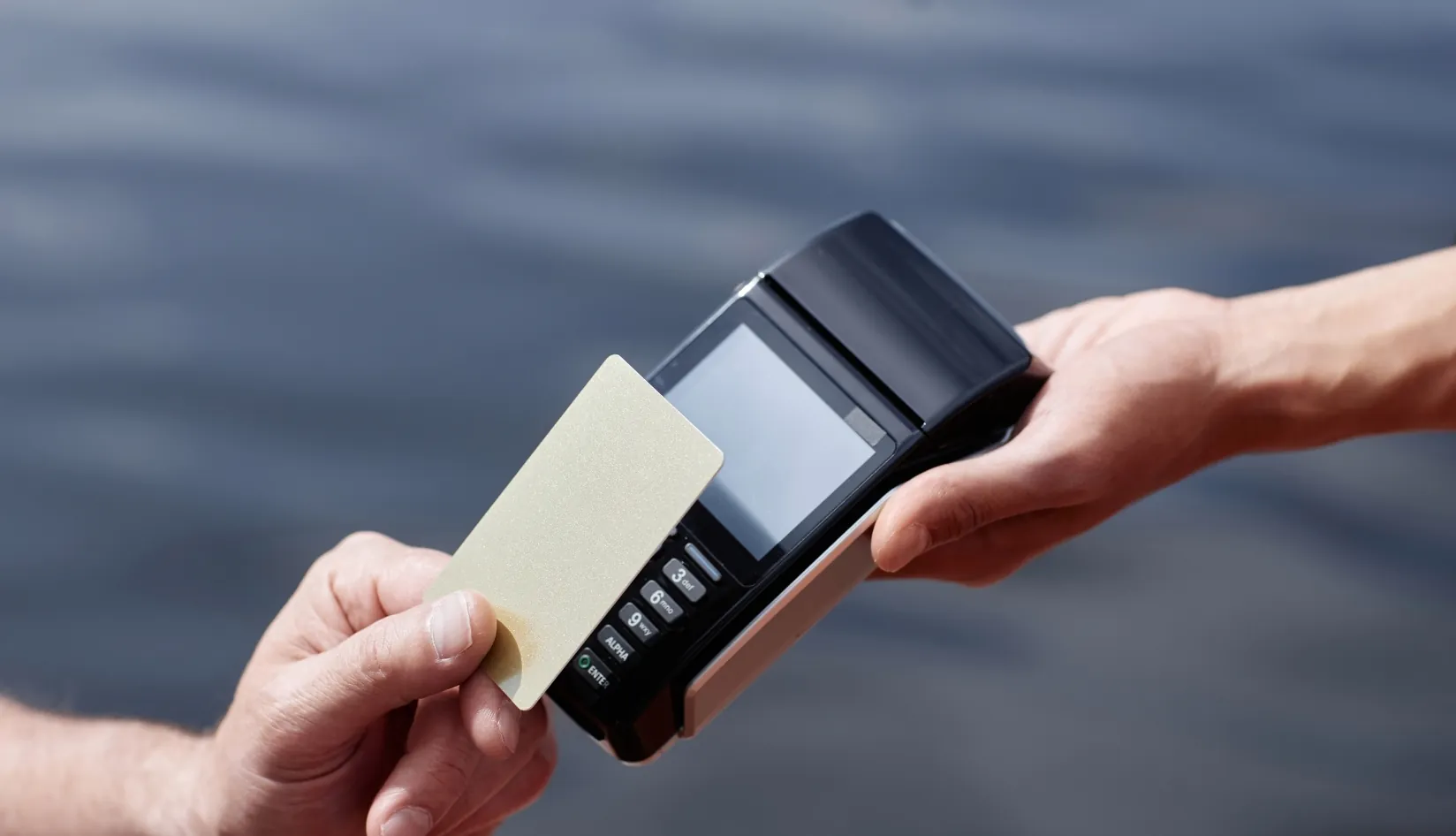
From office check-ins to smart home automation and even loyalty programs at your favorite coffee shop, NFC cards are quietly transforming the way we interact with the world. They’re small, smart, and surprisingly powerful—acting as a seamless bridge between the physical and digital. But before an NFC card can do anything useful, it needs to be programmed. So how do you program a blank NFC card using just your phone? Let’s walk through it step by step.
What Are NFC Cards and How Do They Work?
What Is NFC?
NFC (Near Field Communication) is a short-range wireless communication technology developed from RFID (Radio-Frequency Identification). It enables two electronic devices to exchange data at high speed when they’re in close proximity—typically less than 4 centimeters—without requiring physical contact.
Unlike Bluetooth or Wi-Fi, NFC isn’t designed for long-distance, high-speed data transfer. Instead, its strength lies in fast, secure, and convenient communication over very short distances, making it perfect for use cases like tap-to-pay systems, access control, and device pairing.
What Is an NFC Card?
An NFC card is a passive device, meaning it contains a tiny embedded NFC chip and antenna but doesn’t have its own power source. It doesn’t actively transmit data until it comes in contact with an NFC reader (like a smartphone or scanning device), which powers it through electromagnetic induction.
These cards can store small amounts of data, such as:
- A website URL
- A short text message
- Contact information (vCard)
- Wi-Fi configuration details
- Bluetooth pairing data, and more
How Does NFC Work?
When an NFC-enabled reader device is brought near an NFC card, the following process occurs:
- Power Transfer: The reader, acting as the active device, emits a high-frequency electromagnetic field (13.56 MHz) through its internal antenna. The passive NFC card harvests this energy via induction, powering its internal chip.
- Data Exchange: Once activated, the card communicates by modulating the electromagnetic field using techniques like ASK (Amplitude Shift Keying) or PSK (Phase Shift Keying). Although NFC supports full-duplex communication, these exchanges typically happen within a few hundred milliseconds.
- Range Limitation: NFC only works over very short distances (usually within 0–4 cm). This design minimizes the risk of data interception and accidental scans, making it a secure and user-friendly option for many real-world applications.
How to Program a Blank NFC Card
Once you have a blank NFC card, turning it into a powerful smart tool is easier than you might think. All you need is a few basic items and a mobile app to get started. Let’s walk through exactly what you need and how the process works.
What You’ll Need
To program a blank NFC card, you’ll need the following:
A Smartphone or Tablet with NFC Support
Most modern Android phones come with built-in NFC functionality. You can check your device’s settings—just search for “NFC” to see if it’s supported and enabled.
iPhones from model 7 and up also support NFC, although with some limitations on writing to NFC tags.
An NFC Programming App
There are several powerful and user-friendly NFC apps available on app stores. Two of the most popular ones are:
- TagWriter by NXP – Developed by NXP (the chip manufacturer behind many NFC cards), this app is stable, reliable, and professional-grade.
- NFC Tools – Available for both Android and iOS, this app offers a clean interface and a wide range of features for reading and writing NFC tags.
Step-by-Step Guide: Writing Data to an NFC Card Using TagWriter by NXP (Example: Writing a Website URL)
If you already have a blank NFC card, an NFC-enabled smartphone, and the NXP TagWriter app installed, her’s a step-by-step guide to writing a URL onto your NFC card:
Step 1: Run the TagWriter by NXP App
Locate and run the TagWriter by NXP app on your phone. Developed by the NFC chip manufacturer NXP, this app is beginner-friendly with a clean and simple interface.
Step 2: Select “Write Tag”
From the home screen, tap on “Write Tag” to start the data-writing process. Then clink “New dataset”.
Step 3: Choose the Data Type – Link (URL)
From the list of available data types, select “Link”. This tells the app that you want to write a web address to your NFC card.
Step 4: Enter the Title and URL
You’ll be taken to a form where you can input the following:
- Title(Optional): Give your link a name, like “My Website” or “Promo Page.”
- URL: Select the URL type ,and paste or type in the full web address you want to store—e.g., https://www.rfidcard.com.
Make sure the URL is valid and complete before proceeding.
Step 5: Write the Data to Your NFC Card
Once your information is filled out, tap the “SAVE & WRITE” button.
Then, tap “WRITE” and place your phone close to the NFC card—either on the front or back, depending on where your phone’s NFC antenna is located. Hold it steady. After the data is written successfully, tap “TAP TO CONFIRM STORE” to finalize.
Step 6: Test the NFC Card
To make sure it worked, simply bring your phone close to the NFC card again.
- If everything went well, your phone should automatically detect the card and prompt you to open the URL.
- On some Android phones, the browser may launch immediately and take you to the link.
Step-by-Step: Writing Data to an NFC Card Using NFC Tools (Example: Writing a Website URL)
If you’ve got a blank NFC card, an NFC-enabled smartphone, and the NFC Tools app installed, you’re all set to start programming your card. Here’s how to do it, step by step:
Step 1: Launch the NFC Tools App
Find and launch the NFC Tools app on your phone. It’s available for both Android and iOS, with an intuitive interface and powerful features—perfect for beginners and advanced users alike.
Step 2: Tap “Write”
Once you’re in the app, tap the “Write” tab at the top of the main screen. This will take you to the section where you can add data to your NFC card.
Step 3: Tap “Add a Record”
Next, tap the “Add a record” button. This lets you choose what kind of data you want to write to the card.
Step 4: Select “URL” and Enter Your Link
From the list of record types, choose “URL/URI”.
Select the URL format you want (usually just a standard web address), then enter your link—for example, https://www.rfidcard.com. Make sure it’s typed correctly, and tap “OK” to confirm.
You can also enter other types of URLs, like links to online stores, promotional pages, or social media profiles.
Step 5: Write to the Card
Now, tap the third line’s “Write” button.
The app will prompt you to hold your phone near the NFC card. Find your phone’s NFC antenna area, align it with the card, and hold steady for a few seconds.
Once the write is complete, you’ll see “Write complete!”. Tap “OK” to finish.
Step 6: Test the NFC Card
To make sure it worked, simply bring your phone close to the NFC card again.
- If everything went well, your phone should automatically detect the card and prompt you to open the URL.
- On some Android phones, the browser may launch immediately and take you to the link.
If you find the written steps a bit hard to follow, feel free to check out the video below for a more visual walkthrough:

Real-Life Uses of NFC Cards
NFC cards are being used in a wide variety of real-world scenarios. Here’s a closer look at how these tiny, smart tools are making everyday life more convenient, secure, and connected.
Smart Home Automation
NFC cards can serve as powerful triggers in your smart home setup. With just a tap, you can activate specific functions without opening apps or issuing voice commands. For example:
- Turn lights on or off when entering or leaving a room.
- Start your favorite playlist with a quick scan.
- Trigger preset scenes in platforms like Home Assistant—such as “Good Morning,” “Movie Time,” or “Away Mode.”
These NFC-powered automations simplify your routines and bring a seamless touch of smart living.
Access Control
NFC is widely used for secure access and identity verification in various environments, including:
- Office or building entry: Employees can use NFC ID cards to unlock doors and clock in.
- School IDs: Students use NFC-enabled cards for campus access and even payments in cafeterias or libraries.
- Smart door locks: Many modern smart locks support NFC access, replacing traditional keys with a simple tap.
This not only enhances security but also eliminates the need to carry bulky keychains or remember multiple passwords.
Digital Business Cards
Want to share your contact details or social media links with just one tap? NFC cards are becoming the new wave of digital business cards:
- Personal cards: Store your phone number, LinkedIn profile, website, or email so others can save your contact info instantly.
- Company cards: Share your business’s website, service page, or support links with clients and partners, instantly and effortlessly.
Compared to traditional paper cards, NFC digital business cards are more interactive, eco-friendly, and easier to update.
Payments & Ticketing
NFC technology is at the heart of many contactless payment and ticketing systems, offering speed and convenience. Common use cases include:
- Mobile payments: Services like Apple Pay, Google Pay, and Samsung Pay rely on NFC to complete transactions securely with a tap of your phone or smartwatch.
- Transit systems: Tap an NFC card or device to enter buses, trains, or subways—no need for paper tickets.
- Event tickets: NFC cards can also serve as digital tickets for concerts, festivals, and sports games, making entry quick and paperless.
This approach streamlines checkouts and access points while enhancing user experience and security.
Marketing & Promotions
NFC is a game-changer in the world of interactive marketing. Brands are using NFC stickers and tags to connect with consumers in new and engaging ways:
- In-store promotions: Shoppers can tap an NFC tag to access special discounts, digital coupons, or product info.
- Branded experiences: Direct customers to your app, YouTube channel, or Instagram profile with a tap.
- Smart posters and packaging: Add NFC tags to your ads or product boxes to instantly provide more details or run limited-time campaigns.
NFC gives businesses an exciting way to create immersive, action-driven experiences that encourage customer engagement.
Conclusion
Now that you’ve mastered how to program blank NFC cards with your phone, the possibilities are wide open. Whether you’re a tech enthusiast, smart home hobbyist, or a business owner, NFC is a powerful and fun tool to explore. With just a few simple steps, you can turn a blank card into a smart, functional tag!
FAQs
Can all smartphones write to NFC cards?
Not all smartphones are capable of writing to NFC cards. Your device needs to meet two main requirements:
- NFC Support: Your phone must have built-in NFC hardware. You can check this by going to your phone’s settings and searching for “NFC.”
- NFC Enabled: On Android devices, you may need to enable NFC in your settings. On iPhone, NFC features are handled through supported apps and device capabilities.
Many modern Android phones support NFC writing, although availability depends on the device model and NFC hardware. For iPhones, NFC reading has been supported since the iPhone 7, while NFC writing and tag programming capabilities became more widely available with iOS 13 and later. However, the available NFC functions depend on the iPhone model, iOS version, and the app being used.
Can NFC cards be rewritten? Will they wear out quickly?
Yes. Most blank NFC cards can be rewritten multiple times, especially those based on chips such as NTAG® 213, NTAG® 215, and NTAG® 216. These chips are typically specified for up to 100,000 write cycles.
As long as the writable memory area has not been locked or protected, the stored data can be updated or overwritten when needed. The actual rewrite capability depends on the NFC chip model, memory structure, and how the card is configured.
Just keep in mind: Once a memory area is permanently locked, the stored data in that area cannot be modified or deleted afterward.